Top 10 CCNA Exam Topics

This article will help students study effectively for the CCNA certification exam. Cisco publishes a roadmap every 12 months to add or remove exam topics based on relevance and importance. There is also an on-going shift that affects how many questions you will get for individual topics. For example, IP connectivity domain with 25% of exam points could have most of the questions on only two topics.

Knowledge DomainScoring
Network Fundamentals20%
Network Access20%
IP Connectivity25%
IP Services10%
Security Fundamentals15%
Automation and Programmability10%

It is crucial for students to create a study plan based on coverage of all topics and spend more time on key topics. Top 10 exam topics are required to answer questions in multiple knowledge domains. Exam points are weighted higher for core topics and that will affect your test score.

1. Subnetting

Students cannot pass the CCNA exam without solid subnetting skills. CCNA is a timed exam and accuracy is important as well. Subnetting extends to multiple topics and knowledge domains. For example, subnetting is required for IP interface addressing and route selection. Subnetting will follow you to the CCNP exam as well for topics such as route maps.

There are also wildcard masks used for advertising OSPF routes and access control lists (ACLs). The wildcard mask is an inverted subnet mask for advertising or filtering classful and classless routes. Network address translation (NAT) allows host internet access based on ACL wildcard masks. Learn how to calculate a wildcard mask in seconds for the CCNA exam.

IP Subnetting For CCNA (free course)

2. Interpret Routing Tables

There is a lot of anecdotal evidence that suggest students must know how to analyze routing tables for the CCNA exam. This topic will require knowledge of route selection and subnetting to answer questions. There is an algorithm that is used to select routes to install in the routing table. Routers will use the same algorithm to select routes already installed in the routing table for making forwarding decisions. Route selection is based on administrative distance, metrics, and longest prefix match subtopics.

Subnetting skills are required for longest prefix match rule to calculate address range. You will get output from a routing table and asked what route is selected to a specific network or what route is installed. What happens when a network interface is down and how does that affect selection of a backup route? There are also mandatory questions on the configuration of IPv4/IPv6 default and static routes that include route selection.

3. Switch Interconnects

Switching protocols is another core topic and not surprising since most network devices are switches. Consider data centers where most network traffic is between servers that connect via multiple switch types. There is much less traffic that traverses the internet by comparison. You can count on a significant number of trunking and Etherchannel questions that include labs. Switch connectivity also includes subtopics such as switch port settings, VLANs, and spanning tree protocol. LACP Etherchannel is often configured with trunk interfaces to connect switches with Layer 2 and Layer 3 port channels. Wireless controllers are prevalent in the data center and also connect to switches.

4. Wireless Protocols and RF Concepts

Cisco has added a lot more wireless network questions to the CCNA exam recently. In fact, students will have to know everything from RF concepts to wireless security and advanced controller settings from GUI. It is important to study the various features available to lower latency and enable faster roaming. Know how to navigate the controller GUI to enable security features along with authentication and encryption protocols. There are different AP modes such as FlexConnect and CAPWAP tunnel communication to the controller. Consider as well how DHCP and DNS traffic is managed and the various controller interfaces. You should also know how communication works between controller, access point, and clients.

5. Open Shortest Path First (OSPF)

OSPF is an open standard IP routing protocol that is easily the most popular IGP within the enterprise network. OSPF is a core topic with questions on operation, single-area configuration, and how to verify connectivity. You will also get questions based on the output of a show command and determine how a router is configured. Some key topics include router ID selection, DR/BDR election, OSPF network type, and metric calculation. OSPF uses wildcard masks to advertise subnets to neighbors. You should also know how to configure OSPF using the interface method. Make notes on timer interface settings, passive interfaces, and default priority.

OSPFv2 is officially the only dynamic routing protocol on the CCNA syllabus however that isn’t entirely accurate. Since route selection involves administrative distance (AD) you should know the AD values for all default, static and dynamic routing protocols. It is recommended to include OSPF and EIGRP metrics in your study plan as well.

6. Access Control Lists (ACL)

Some of the most difficult topics on the CCNA exam include access control lists and subnetting. CCNA will have concept and configuration questions pertaining to access control lists. For example, select the ACL to deny specific traffic classes for a range of subnets and enable logging. It is important to know how to analyze ACLs and determine what is being filtered.

Study application port numbers, IP protocol numbers, and how to configure IPv6 access control lists. There are standard, extended, and extended named ACL questions on the exam. Learn where to apply ACLs and how that affects filtering and performance. Students should also study local account authentication options and device passwords.

7. Cisco IOS Commands

Students should make a cheat sheet for all configuration topics and associated show commands. Read the official CCNA syllabus and note every instance where configure and verify keywords are mentioned. Include protocols such as DNS, DHCP, and HSRP as well where configure is not specified. There are performance-based labs that will require you to configure and verify multiple protocols. For example, OSPF, static routes, Etherchannel, trunking, NAT, and DHCP snooping. Know how to analyze the output of show commands to determine configuration settings for a device as well.

Cisco Performance-Based Simulation Labs (2025)

8. IPv6 Addressing

This topic has a reputation for lowering the score of CCNA test-takers. IPv6 addressing has been implemented as almost a second level of addressing within the enterprise. As a result, some students do not have the experience or spend enough time studying. The questions range from addressing types, configuration of static routes, and addressing methods. Know how to configure SLAAC, EUI-64 interface format, and DHCPv6. Distinguish between different prefix lengths and number of hosts for LAN/WAN connectivity. There are also differences between IPv4 and IPv6 network communication protocols.

9. DHCP / DNS Services

DHCP and DNS services extend to different addressing platforms and protocols. They are core network services and the CCNA exam will require basic knowledge. You should know how DHCP communicates with clients and how to configure an IOS server. The same concepts will apply to host-based DHCP for client addressing along with DHCP relay.

As with most network protocols there are port numbers, message types, and show commands as well. Study DNS protocol operation, services, and record types for IPv4 and IPv6. Distinguish between client-based DNS services and Cisco-based DNS configuration. It is important to know both host commands and IOS commands for all IP services listed with the syllabus. Since TCP and UDP transport is so crucial to network communication make sure to know the differences.

10. Software-Defined Networking (SDN)

SDN topic is comprised mostly of architecture and REST-based APIs questions. For example you should study the operational planes and mapped network services. There is also SDN controller operation, functions, and communication with physical devices. That includes northbound and southbound interfaces. You will get questions on REST API operation, authentication methods, and HTTP headers. The authentication methods include basic, JWT, OAuth2, and API keys. Some overlap is starting to exist between networking and DevOps.

Network Automation Appliance (GNS3)

  • Import appliance
  • Login credentials
  • Netplan addressing
  • Windows PowerShell SSH
  • Automation test scripts
  • Lab topology example
  • How to run Ansible playbooks
  • How to run Python scripts
  • ChatGPT tips and tricks

Automation Node is a Ubuntu-based full automation appliance for GNS3. The network automation node includes automation software for multi-vendor labs. There are Ansible playbooks and Python scripts included as well that are based on Cisco devices.

  • Python3
  • Ansible
  • Netmiko
  • Napalm
  • requests
  • ncclient
  • pyeapi (Arista)
  • OpenSSH Server
  • pyinstaller

Download automation node

Download the .gns3a template file that is used to import appliance into GNS3. The YAML template file automation-node.gns3a is saved to your downloads directory.

Click here

Import appliance

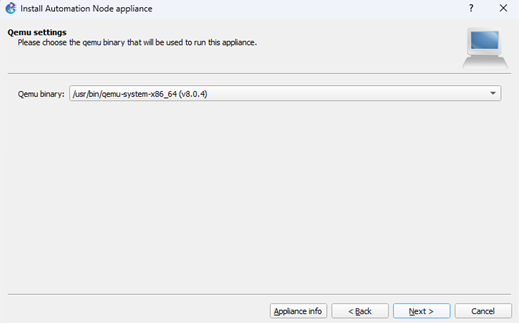
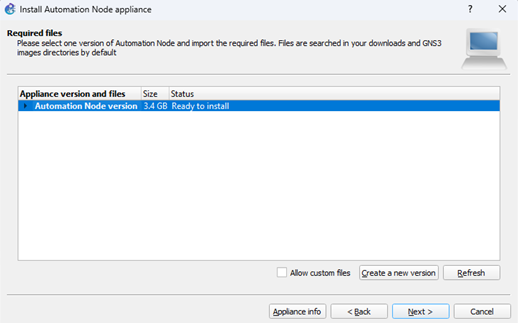
Start GNS3 and select File -> Import Appliance, then browse to the downloads directory and select automation-node.gns3a file. This will start import appliance wizard to download automation-node.qcow2 image and add the appliance to your End Devices group.

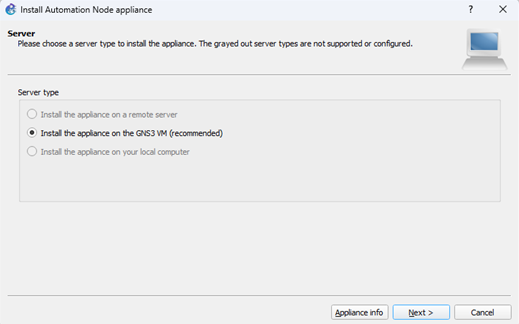
Click Next to install appliance on GNS3 VM

Click Next to accept default Qemu binary file.

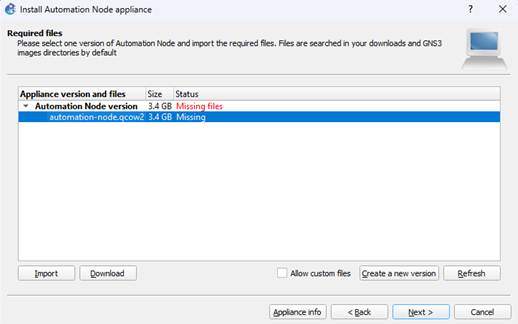
Select automation-node.qcow2 in dialog box and click Download button. Since GNS 2.2.55+ the image download is automatic if missing from VMware.

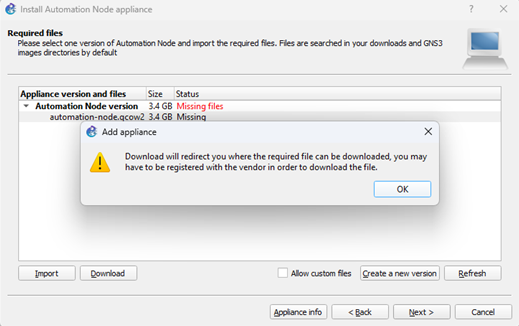
Click OK to start file download and click Refresh button after 1-2 minutes. You can also monitor download and click Refresh when it is done.

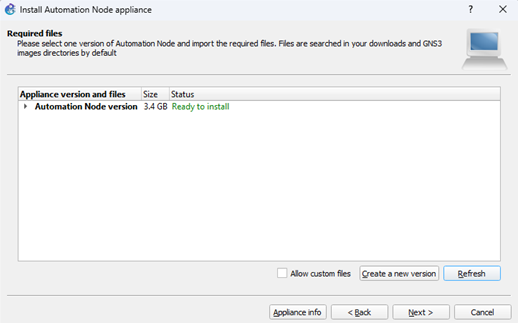
The file status will change from missing to ready when done.

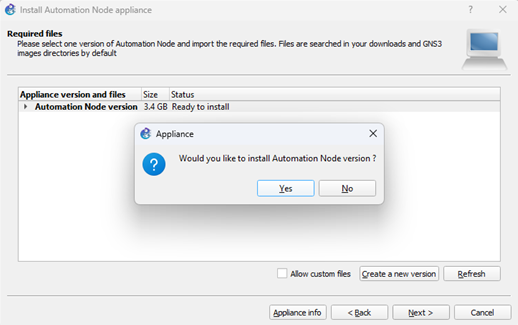
Select Automation Node version in dialog box and click Next.

Click Yes to install automation node appliance. Go to End Devices group and verify automation appliance is listed.

Custom symbol

Download the custom appliance symbol then select End Devices group, right-click Automation Node appliance and select configure template. Click symbol browse button and select use a custom symbol. Browse to your downloads directory and select automation-node.png file. Open a lab and drag the automation appliance onto workspace.

Click here

Account login credentials

Automation node default account has sudo level security access.

username: ubuntu / password: automation

DHCP IP addressing

Ubuntu Netplan is configured to obtain an IP address from a DHCP server by default. This includes either Cloud node, NAT node, or any other DHCP server in your lab topology.

Static IP configuration (optional only)

You can optionally configure a persistent static IP address and default gateway on the automation node instead of DHCP. There is a file named static-ip.yaml located in your home directory that can be copied to /etc/netplan/ directory for this purpose.

ubuntu@automation-node:~$ ls
ubuntu@automation-node:~$ sudo mv ~/static-ip.yaml /etc/netplan/
ubuntu@automation-node:~$ cd /etc/netplan/

Edit static-ip.yaml file with nano editor to modify IP address and default gateway based on your lab. Press Ctrl-O and Enter to write changes, then Ctrl-X to exit nano editor. Run sudo netplan generate and sudo netplan apply commands to update Netplan settings.

ubuntu@automation-node:~$ sudo nano static-ip.yaml
ubuntu@automation-node:~$ sudo netplan generate
ubuntu@automation-node:~$ sudo netplan apply

Windows PowerShell SSH access (recommended)

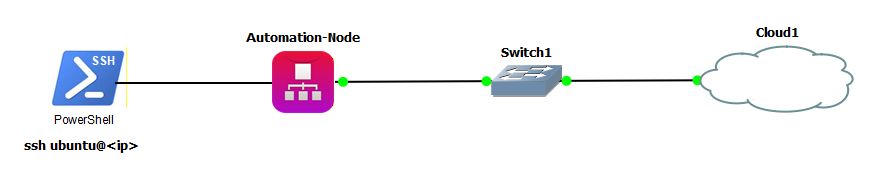
The preferred method to access automation control node is from Windows PowerShell via SSH. This is recommended since PowerShell has Windows style terminal navigation, text readability, and easy to copy/paste text blocks. Creating your own scripts will require copy and paste from ChatGPT to Ubuntu nano editor. There is also copy and paste of script errors from Ubuntu to ChatGPT for troubleshooting or refactoring. Attempting to do this from within Ubuntu basic terminal is an exercise in frustration to say the least.

Step 1: Start with identifying the IP address assigned to Ethernet interface (ens3) via DHCP or optionally static IP:
(automation-venv) ubuntu@automation-node:~$ ip a
Step 2: Start Windows PowerShell and SSH into Ubuntu control node with username ubuntu and IP address: (type yes to ignore key fingerprint error and continue)
PS C:\Users\>ssh ubuntu@ip address
Step 3: Enter your Ubuntu password
PS C:\Users\>ubuntu@ip address password: automation

Automation test scripts

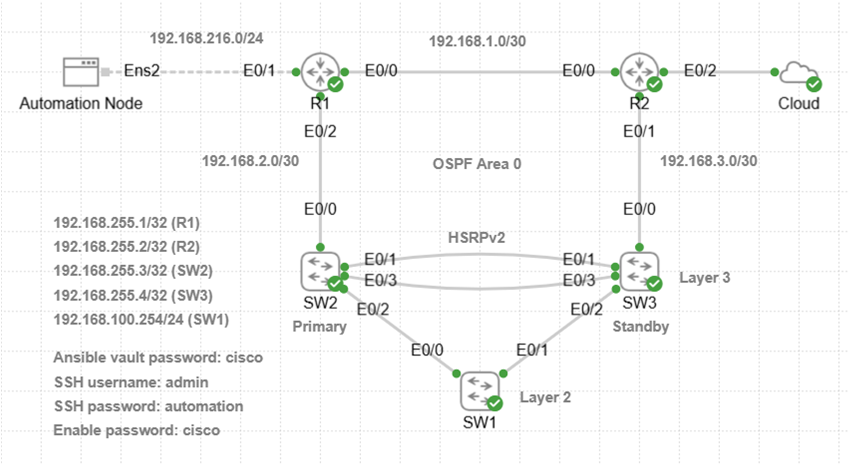
GNS3 automation appliance includes the following directory structure for Ansible playbooks and Python scripts. Ansible playbooks are coded to use vault feature for SSH password encryption using password cisco. Python scripts use getpass feature in scripts for the same purpose.

*Do not test and/or debug any lab scripts included here in your production environment.

~/scripts/ansible
├── hosts.ini
├── vault.yaml
├── ping_check.yaml
├── ssh_connect_test.yaml
├── cisco_backups.yaml
├── vlan_config.yaml
├── etherchannel.yaml
├── loopback_interface.yaml
├── syslog.yaml
├── extended_acl.yaml
├── enable_secret_compliance.yaml
├── switch_status_check.yaml
├── post_deployment_check.yaml
├── /reports
├── /cisco_backups

~/scripts/python
├── devices.txt
├── switches.txt
├── ping_check.py
├── ssh_connect_test.py
├── interface_status.py
├── cisco_firmware_scan.py
├── encryption_compliance.py
├── switch_post_deployment_check.py
├── /reports

Automation lab topology example

Download and unzip the Cisco device scripts used with CML lab and create your own GNS3 automation lab. You will have to run crypto key generate rsa command on all devices to enable SSH. Press Enter at the prompt to configure the default 2048 bit key length modulus. Connect the automation node to a router in the same subnet or an access switch that can access all network devices.

The device configuration scripts are based on a partially configured lab. Run all Ansible playbooks (vlan_config.yaml etc.) to complete the lab configuration. Python scripts provide compliance and status checks. For best results, run playbooks and scripts in the order they are listed and verify any reports generated.

CML lab device scripts

Free Courses

How to run Ansible playbooks

The following commands are used to run Ansible playbooks from Ubuntu control node. Ansible hosts.ini file is mandatory since it provides hostname and IP address of Cisco devices. The only Ansible playbook that does not use vault password is ping_check.yaml since there is no SSH login. Run Ansible playbooks from home/scripts/ansible directory and include –ask-vault-pass keyword for vault password. All text reports are saved to reports directory except cisco_backups and viewed with cat |more command. Start with SSH from PowerShell to Ubuntu based on your Linux username and IP address that VMware assigned to your VM. (e.g., 192.168.216.128)

ssh username@ip address

(automation-venv) ubuntu@automation-node:~$ clear

(automation-venv) ubuntu@automation-node:~$ ls -l

(automation-venv) ubuntu@automation-node:~$ cd scripts/ansible

(automation-venv) ubuntu@automation-node:~$ ansible-playbook -i hosts.ini ping_check.yaml

(automation-venv) ubuntu@automation-node:~$ ansible-playbook -i hosts.ini ssh_connect_test.yaml ask-vault-pass

Vault password: cisco

How to run Python scripts

The following commands are used to run Python scripts from Ubuntu control node. You will be prompted for SSH username and password used for Cisco device login. There are devices.txt and switches.txt host files with hostname and IP address used by scripts. Run Python scripts from home/scripts/python directory. All .txt/.html reports are saved to reports directory and viewed with cat |more command.

(automation-venv) ubuntu@automation-node:~$ cd scripts/python

(automation-venv) ubuntu@automation-node:~$ python3 cisco_firmware_scan.py

SSH username: admin

SSH password: automation

ChatGPT prompt engineering tips and tricks

Ansible playbooks and Python scripts provided were 100% created with ChatGPT. Learn how to develop and test network automation scripts with ChatGPT. You can generate and troubleshoot scripts in seconds that would otherwise take you hours or days if at all.

Creating Ansible playbooks and Python scripts

Creating automation scripts with ChatGPT is an iterative process of prompt, test, debug, and validate. You will have ChatGPT debug errors along with how scripts are run and reports. This is common and results from prompts with missing details or context.

Prompt Engineering: The responses from ChatGPT are only as good as the prompts you input. Each prompt should provide context that includes your current setup and what you want to accomplish. This should include virtualization software, automation tools, hosts file, and Cisco network details for example. Then include functional requirements to define an effective prompt that ChatGPT can use to create script.

Context Example: VMware, Ubuntu Server control node 24.04, ansible vault enabled, SSH connect to Cisco devices, IOS-XE, IP addressing, paste hosts.ini file or python hosts file.

Functional Requirements Example: ansible playbook, backup startup configuration, explain purpose of script or paste IOS command/s, report format (.txt/html) and directory, security issues, addressing, cisco module features, verify updates, and save configuration.

Step 1: ChatGPT Prompt

My current setup is VMware with Ubuntu server control node that connects via SSH to Cisco devices running IOS-XE. Ansible vault.yaml is already configured with encrypted SSH password and enable secret password. This is my hosts.ini file for reference. Create an Ansible playbook based on this pasted hosts.ini file. The script should backup startup configuration first and then configure service password encryption on all devices from all_cisco inventory group. Print the results to terminal and also a text report saved to ~/scripts/ansible/reports directory. Save the running configuration and use Cisco module that supports idempotency, error checking, and configuration validation.

Step 2: Copy/Paste Script to Nano Editor

Start Ubuntu nano editor with the name of your new Ansible playbook or Python script. Paste the code copied from ChatGPT grey box to nano editor with right-click. Save the file with Ctrl-O and hit Enter to confirm write. Exit nano editor with Ctrl-X and return to Ubuntu command line.

(automation-venv) ubuntu@automation-node:~$ nano playbook.yaml

Step 3: Run Script

Create an automation lab where preliminary testing and debugging of scripts can be done without affecting the production network. It is recommended to have hosts file in the local working directory.

Step 4: Debug Script

Any error messages can be copied to ChatGPT for analysis and to modify script. There are often issues with how script runs and reports that do not necessarily generate error messages. Ask ChatGPT for a full modified playbook or script since mistakes are often made with pasting snippets into original script.

Step 5: Post-Run Validation Test Plan

Some examples of functional tests include HSRP failover, interface shutdown for routing behavior, or performance tests. You could verify Syslog operation for example by shutting down an interface and run cat /var/log/syslog command. This Ubuntu command will list the interface down system message generated at bottom of log. ACL tests are another example that involves sending destination traffic and verify filtering is working correctly.

ChatGPT Prompt: Python

My current setup is VMware with Ubuntu Server 24.04 control node that connect via SSH to Cisco L2 and L3 switches running IOS-XE. This is hosts file called switches.txt pasted here that lists IP addresses of switches. Python script must be implemented with getpass to prompt for SSH password and secret enable password. This is a security policy so that no device passwords are hard-coded in script. The script should backup startup configuration first and then parse running configuration to check if enable secret command is present on all target devices. Print the results to terminal and also a text compliance report saved to ~/scripts/python/reports directory.