The purpose of iPerf3 is to measure LAN/WAN throughput and link quality. Learn how to use iPerf3 for LAN data center testing and troubleshooting. Lab examples include LAN baseline testing, link quality, and server processing delay. Linux network emulator (netem) is used to condition labs for LAN testing.
The software is based on a client/server model where TCP or UDP traffic streams are generated between client and server. This is referred to as memory-to-memory socket-level communication for network testing. iPerf3 supports disk read/write testing as well that identify server hardware as the performance bottleneck. It is also a popular tool used to troubleshoot network and application problems.
Network Engineers: iPerf used to validate ISP connection, link quality for voice traffic, QoS configuration, and troubleshooting network issues .
DevOps Engineers: iPerf used for validating network performance after changes and ensuring the network meets specific performance standards.
Internet Service Providers: Service providers use iPerf to measure and verify the network performance, ensuring they can meet customer expectations.
System Administrators: They use iPerf to verify the performance of internal or external network connections, such as for file transfers or remote server access.
Cloud Service Providers: iPerf is useful for testing connections between users and cloud services to ensure optimized performance and to pinpoint potential bottlenecks.
iPerf3 Lab Examples
- Data Center Throughput
- What-if Simulation
- Link Quality (packet loss/jitter)
- Disk Read/Write Throughput
Install Cisco CML Free Version Software
Cisco CML free version is required for iPerf3 labs. The article includes installation of VMware (free) and how to configure the correct DHCP subnet using virtual editor. Installing Cisco CML also provides access to automation labs available here. There will be Nmap and tcpdump labs based on CML available soon.
Cisco CML Free Version Install
Lab Setup and Software Install
The following instructions apply to initial lab setup only so that software is installed on Ubuntu nodes. Keep your laptop plugged in at all times when running iPerf3 labs and follow install instructions in the correct order.
Step 1: Click on link to download iPerf-LAN lab to your downloads directory for import to Cisco CML. This is a YAML text file (IaC) used to create the lab topology shown.
Step 2: Access CML UI from your browser with DHCP assigned IP address shown in the CML VM console (ignore 9090). Select Advanced button to ignore any SSL certificate warnings, and select Proceed.
This command is an example with CML default username admin and password you created when installing CML. The assigned IP address is only an example and could be different.
https://192.168.216.129
Username: admin
Password: **********
Step 3: Select Import and browse to your downloads directory. Select iPerf-LAN.yaml file and import into CML.
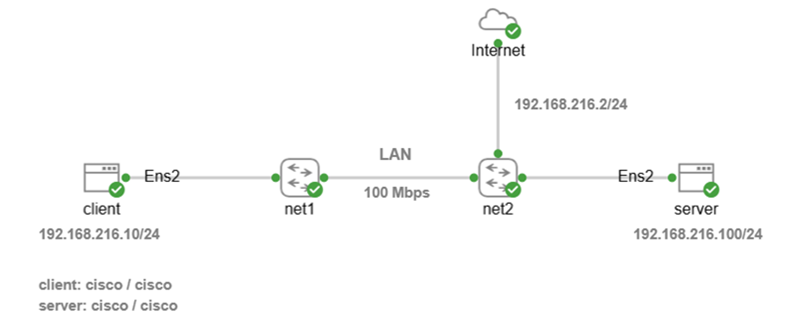
Step 4: Start Internet node and Cisco switches manually first with right-click start option. Wait for green check mark to appear for all nodes.
Step 5: Start Ubuntu client node manually with right-click start option. Monitor install from console and wait for cloud-init to finish. The initial install will take approximately 2-3 minutes to configure IP addressing, update packages, and install iPerf3 on Ubuntu client.
[ OK ] Finished cloud-final.service – Cloud-init: Final Stage.
[ OK ] Reached target cloud-init.target – Cloud-init target.
Hit Enter for login
username: cisco
password: cisco
--version
Step 6: Start Ubuntu server node only after Ubuntu client is finished. Monitor install from console and wait for cloud-init to finish. The initial install will take approximately 2-3 minutes to configure IP addressing, update packages, and install iPerf3 on Ubuntu server.
[ OK ] Finished cloud-final.service – Cloud-init: Final Stage.
[ OK ] Reached target cloud-init.target – Cloud-init target.
Hit Enter for login
username: cisco
password: cisco
--version
Step 7: Select LAB menu item from top of workspace and click stop lab after login to client and server. This is only done once to reset Ubuntu nodes after install and enable caching of disk images for faster performance.
Step 8: Select LAB menu and click start lab, then wait until green check mark appears on all nodes.
Lab 1: LAN Baseline Testing
Start with baseline testing a data center (LAN) link between client and server. The lab simulates a LAN connection using network emulator (netem) software for real-world practical results.
The purpose of baselining is to measure normal network behavior so it can be used as a reference point when troubleshooting network issues. It is also used as before/after comparison with a network deployment. This will reveal any degradation of TCP performance and anomalies. Most network traffic and data applications are TCP-based such as HTTPS, database, and bulk transfers.
*Keep your laptop plugged in at all times since reduced power to virtual machines will affect iPerf3 performance and test results. Do NOT change power plan from default ‘Balanced’ either since that is recommended for this lab.
Select Dashboard and then IPERF-LAN lab if you are starting CML from scratch. Select LAB menu and click start lab and wait until green check mark appears on all nodes.
TCP Upload Throughput (client -> server)
This is a standard throughput (bitrate) test from client to server. iPerf3 will generate a report that also includes data transfer (MB) for test duration and TCP retransmissions.
Command options include client mode (-c), omit TCP slow start data (-O 2), and verbose mode (-V) for more details. Reports are accurate when omitting initial TCP slow start since that is TCP ramp up time when congestion window is expanding. iPerf3 server mode (-s) is started on Ubuntu server to listen for incoming connections from client.
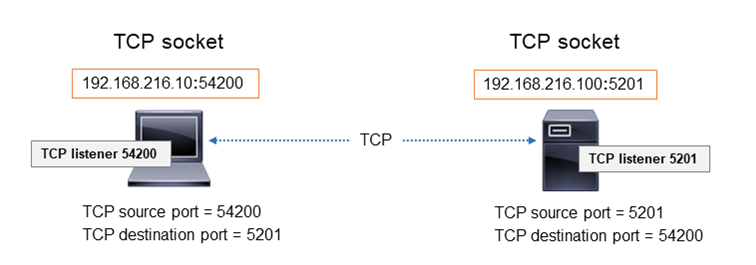
iPerf3 uses the default TCP/UDP port 5201 for network communication between client and server. Firewall rules for TCP/UDP port 5201 are only required if there is a network or host firewall on your local LAN. iPerf custom port option is also available such as -p 443 for example since firewalls typically allow that traffic. This LAN lab does not have a firewall so the iPerf default port is used. iPerf3 –logfile option can be used to save results to a text file for email sharing with group.
Right-click Ubuntu server and select console to login with credentials shown then start iPerf3 server.
username: cisco
password: cisco
clear
iperf3 -s
Right-click Ubuntu client and select console to login with credentials shown.
username: cisco
password: cisco
clear
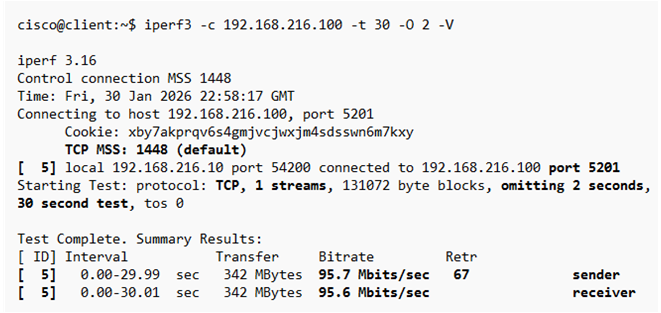
Copy and paste iPerf command to Ubuntu client then hit enter to start upload test.
iperf3 -c 192.168.216.100 -t 30 -O 2 -V
iPerf3 Test Results
This test result is near line bitrate (95 Mbps) throughput from client to server in the data center. iPerf measures real data payload throughput and not theoretical since headers (~5%) are not included. TCP retransmissions should be less than 0.1% of data transfer (342 MB) for LAN connections. TCP retransmissions was 67 or 0.02% calculated for this test and within normal range for data center infrastructure. iPerf assigns an ID to each flow between client and server. This test assigned [5] that represents client (sender) and server (receiver) since it is a forward direction test.
Calculate percentage of TCP retransmissions based on data transfer (MB), default MSS (1448 bytes), and number of retransmissions.
TCP Retransmissions Percent Calculator
TCP-based reports also include how TCP congestion window (cwnd) size changes as packets are sent. It takes only a single TCP stream to saturate LAN bandwidth since BDP is small. TCP congestion window (cwnd) adjusts based on network conditions. The only concern is when there is congestion window less than BDP or zero size window.
BDP = 100 Mbps x 1ms (RTT)
= 100,000,000 bits x 0.001
= 100,000 bits / 8 = 12,500 bytes (12.5KB)
TCP Download Throughput (client <- server)
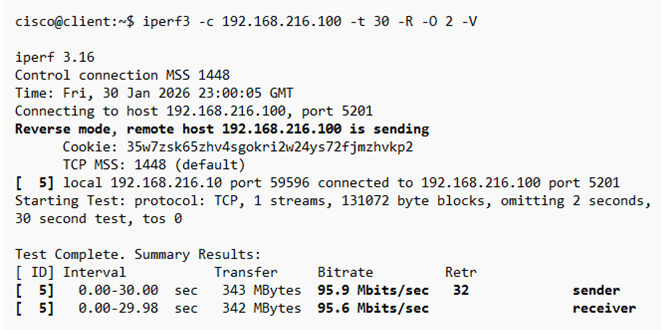
TCP reverse direction (-R) testing is mandatory since each path is distinct with varying latency, throughput and data transfer. There could be more traffic sent from server in the download direction that causes queuing and additional buffering. QoS misconfiguration could also affect iPerf throughput results. Consider testing server-to-server (east-west) traffic as well since it accounts for most data transfer. Copy and paste this command to Ubuntu client then hit enter to start download test.
iperf3 -c 192.168.216.100 -t 30 -R -O 2 -V
iPerf3 Test Results
Download test results are very similar to upload results indicating the link is healthy and stable. TCP retransmissions was 32 or 0.01% for this test and normal for data center links. iPerf assigns an ID to each flow between client and server. This test assigned [5] that represents server (sender) and client (receiver) since it is a reverse direction test.
TCP Full Duplex Throughput (client <-> server)
Bidirectional traffic simulates real-world application flow with packets sent simultaneously in both directions. This increase the number of packets traversing the wire and introduces resource sharing contention (queues, buffers, CPU etc) As a result, latency may increase, retransmissions can occur, and throughput in each direction reduced. Copy and paste this command to Ubuntu client then hit enter to start test.
iperf3 -c 192.168.216.100 -t 30 –bidir -O 2 -V
iPerf3 Test Results
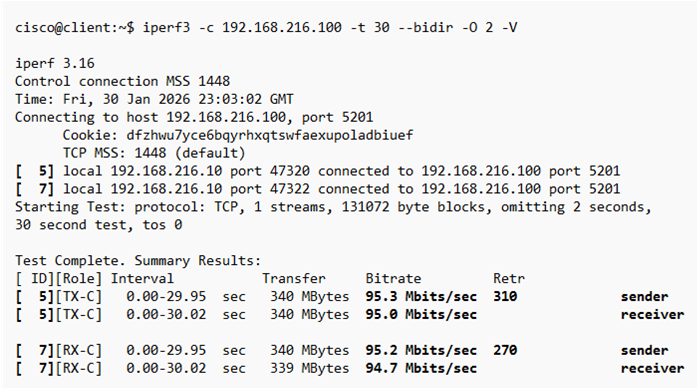
The results for this bidirectional test are similar to upload and download with the exception of slightly higher TCP retransmissions (0.1%). This is not uncommon when traffic is sent simultaneously in both directions and hardware contention occurs. That includes queues, buffers, and device utilization. iPerf assigns an ID that represents a flow between client and server. This test assigned [5] that represents the flow from client to server where sender is client and receiver is server. Conversely [7] represents the flow from server to client where sender is server and receiver is client.
Stop iPerf3 server (Ctrl + C)
clear command
Lab 2: What-if Simulation
Simulate LAN with higher delay and packet loss values to show how TCP throughput, congestion window, and retransmissions are affected. Application traffic is mostly TCP-based and adapts to degraded links with congestion control and reduced throughput.
This netem command simulates a degraded data center link with 1ms one-way delay and 1% packet loss. The higher packet loss causes retransmissions and TCP congestion window to shrink. The result is lower throughput values between client and server. Copy and paste the following commands to enable degraded link condition.
Ubuntu client
sudo tc qdisc add dev ens2 parent 1: handle 10: netem delay 1ms loss 1%
Ubuntu server
sudo tc qdisc add dev ens2 parent 1: handle 10: netem delay 1ms loss 1%
iperf3 -s
TCP Upload Throughput
Copy and paste the following command to Ubuntu client to start upload test.
iperf3 -c 192.168.216.100 -t 30 -O 2 -V
iPerf3 Test Results
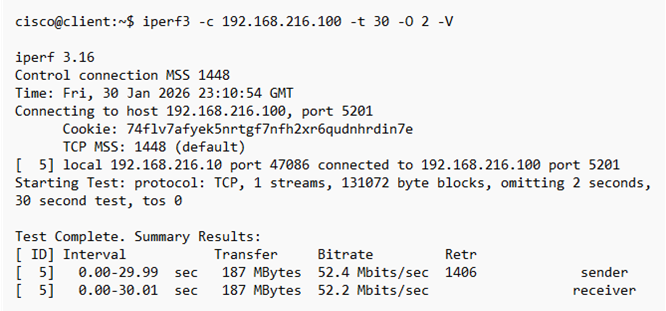
The output results confirm how packet loss of even 1% plays havoc with TCP protocol causing lower throughput. In this example, throughput drops from near line rate (95 Mbps) to 52 Mbps with 1406 retransmissions. This is degraded LAN throughput causing lower data transfer (187 Mbytes). Convert 1406 retransmissions to percent with TCP retransmissions calculator.
TCP Download Throughput
Copy and paste the following command to Ubuntu client to start download test.
iperf3 -c 192.168.216.100 -t 30 -R -O 2 -V
iPerf3 Test Results
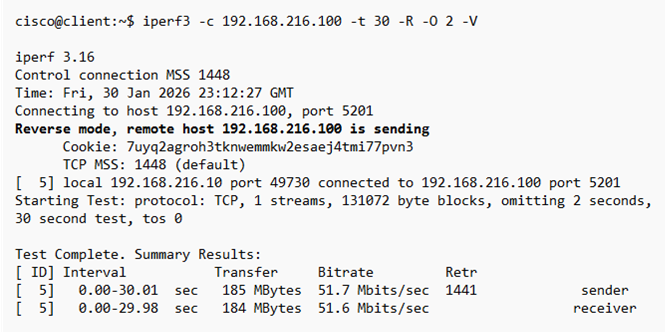
The download results are similar since netem degraded simulation conditions were also applied to Ubuntu server for referse path traffic flow.
TCP Full-Duplex Throughput
Copy and paste the following command to Ubuntu client to start bidirectional test.
iperf3 -c 192.168.216.100 -t 30 –bidir -O 2 -V
iPerf3 Test Results
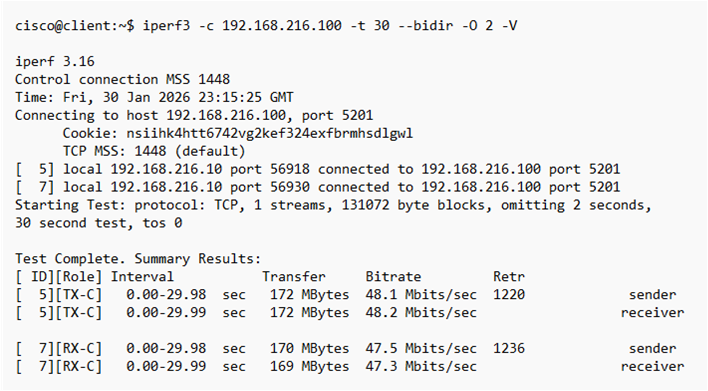
This bidirectional test exposes how contention between traffic flows can cause lower throughput. The same packet loss is applied as with previous tests, however now it is in both directions. Consider that real-world network communication is bidirectional and this tests aggregate effects of simultaneous connections. Troubleshooting is more often based on single direction testing since it allows network engineers to isolate traffic behavior.
Stop iPerf3 server (Ctrl + C)
clear command
Lab 3: Link Quality Testing
The purpose of link quality testing is to measure network health with baseline, saturation, and overload throughput conditions. How does the network adapt when network congestion occurs to minimize packet loss and jitter. This includes queuing, buffering, contention, and CPU utilization. Cisco data plane limits, network bottlenecks, and asymmetric issues are also tested. QoS shaping/policing and L1/L2 errors such as duplex mismatch or MTU mismatch also affect real-world results. iPerf3 does not measure latency (delay) directly however you could run ping in second window from client to measure latency under load. Real-time voice/video applications should not exceed 150ms one-way delay.
*Stress and capacity testing should be done during less busy times and limited in duration or off-hours to minimize disruption. All other tests should be done during normal business hours for real-world results.
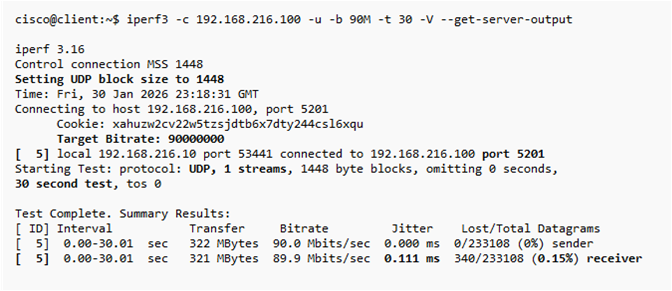
-b 90M is baseline speed to measure packet loss and jitter at near-capacity of link
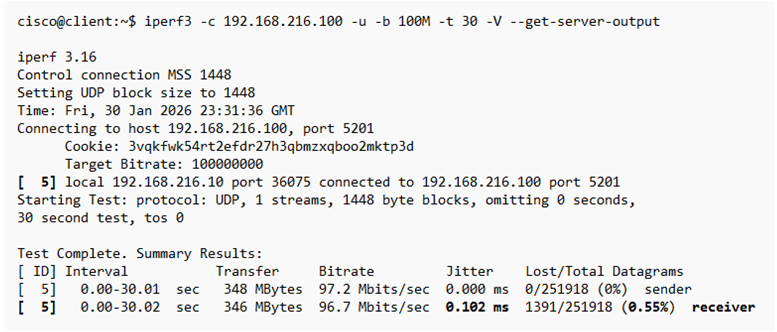
-b 100M is saturation speed to measure packet loss and jitter at line rate capacity
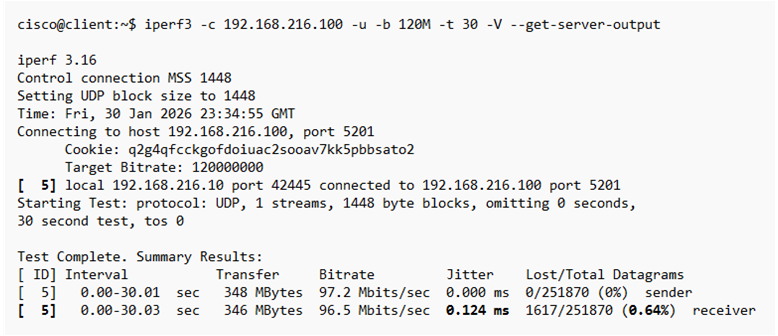
-b 120M is overload with congestion to test if QoS exists and how it enforces limits.
The following commands remove LAN degraded conditions from previous lab and reset network conditions.
Ubuntu client
sudo tc qdisc del dev ens2 root
sudo tc qdisc add dev ens2 root handle 1: tbf rate 100Mbit burst 256k latency 5ms
Ubuntu server
sudo tc qdisc del dev ens2 root
sudo tc qdisc add dev ens2 root handle 1: tbf rate 100Mbit burst 256k latency 5ms
iperf3 -s
Upload Link Quality Test
This is testing upload direction mostly for real-time applications (voice/video) to measure packet loss and jitter. There is baseline (90 Mbps), saturation (100 Mbps), and overload (120 Mbps) capacity testing.
Command options include client mode (-c), UDP packets (-u), bandwidth (-b), test duration (-t), and verbose mode (-V) for detailed output. Link quality tests measure packet loss and jitter at receiving node. The –get-server-output option displays server details of packet loss and jitter for upload test on client machine. Copy and paste each command to Ubuntu client separately to run individual tests.
Baseline Test (90 Mbps)
iperf3 -c 192.168.216.100 -u -b 90M -t 30 -V --get-server-output
iPerf3 Test Results
Test results are within normal range for LAN packet loss (0.15%) and jitter (0.111 ms) at baseline 90 Mbps throughput. LAN switching infrastructure normal packet loss is < 0.5% and jitter < 1 ms.
Saturation Test (100 Mbps)
iperf3 -c 192.168.216.100 -u -b 100M -t 30 -V --get-server-output
iPerf3 Test Results
Saturation test results show a healthy network with only 0.55% packet loss at line rate speed. Jitter (0.102 ms) is well within acceptable range for all applications including voice and video.
Overload Test (120 Mbps)
iperf3 -c 192.168.216.100 -u -b 120M -t 30 -V --get-server-output
iPerf3 Test Results
Overload test results are similar to saturation test suggesting there is shaping and queuing on the network to minimize packet loss and jitter.
Download Link Quality
This is testing download direction for real-time applications (voice/video) to measure packet loss and jitter. There is baseline, saturation, and overload capacity testing. Copy and paste each command to Ubuntu client separately to run individual tests.
Baseline Test (90 Mbps)
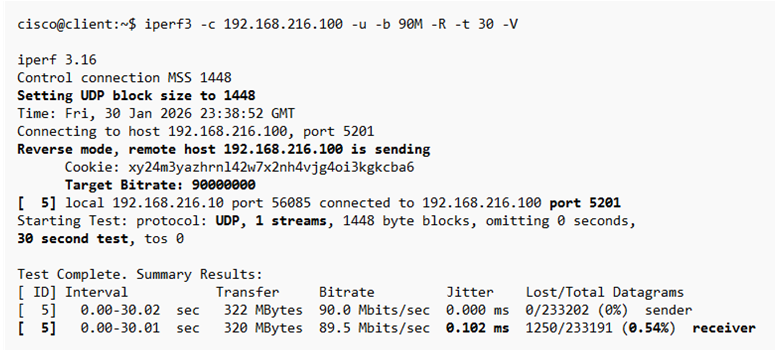
iperf3 -c 192.168.216.100 -u -b 90M -R -t 30 -V
iPerf3 Test Results
Download test at baseline throughput has higher packet loss (0.54%) than upload test and normal jitter. There could be some network congestion in reverse path that is causing packet loss.
Saturation Test (100 Mbps)
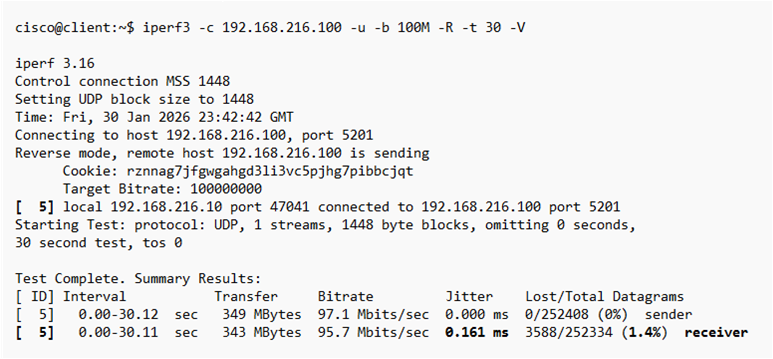
iperf3 -c 192.168.216.100 -u -b 100M -R -t 30 -V
iPerf3 Test Results
Saturation test results shows degraded network performance with 1.4% packet loss at line rate speed. This is not a concern since line rate speed will have some packet loss. Jitter is well within acceptable range for all applications including voice and video.
Overload Test (120 Mbps)
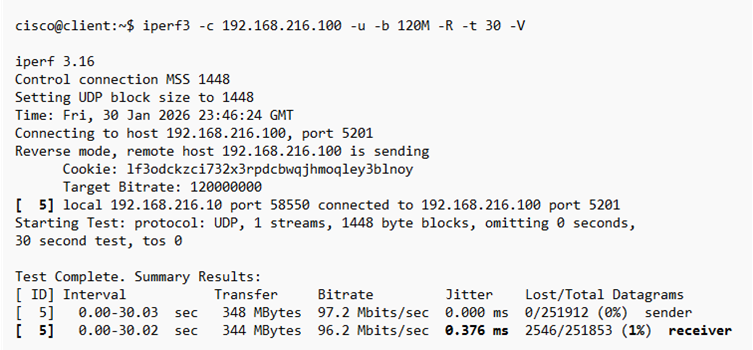
iperf3 -c 192.168.216.100 -u -b 120M -R -t 30 -V
iPerf3 Test Results
Overload test results are similar to saturation test suggesting there is shaping and queuing on the network to minimize packet loss and jitter.
Full-Duplex Link Quality
This is testing bidirectional flow for real-time applications (voice/video) to measure packet loss and jitter. There is baseline, saturation, and overload capacity testing. Copy and paste each command to Ubuntu client separately to run individual tests.
Baseline Test (90 Mbps)
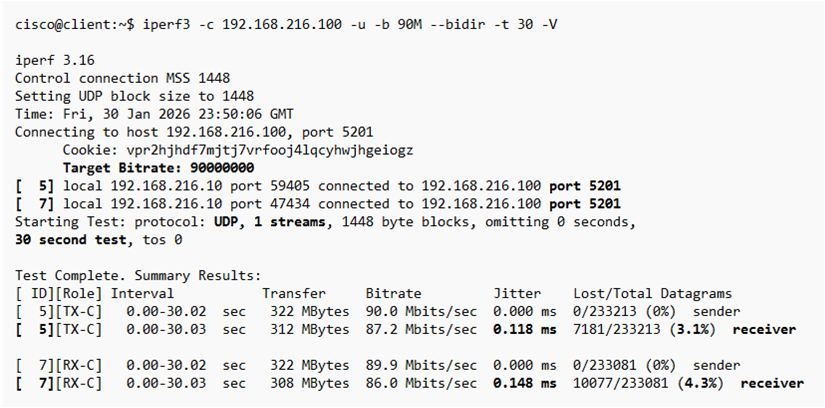
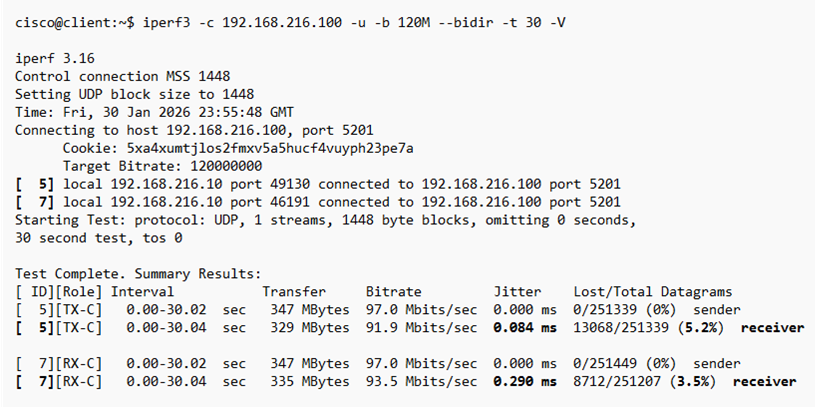
iperf3 -c 192.168.216.100 -u -b 90M –bidir -t 30 -V
iPerf3 Test Results
The results of bidirectional testing show higher packet loss that would cause degraded performance for any application. The fact that it is not worse indicates QoS shaping and queuing is minimizing packet loss. There is adequate network device and buffer capacity to prevent worse network conditions.
Saturation Test (100 Mbps)
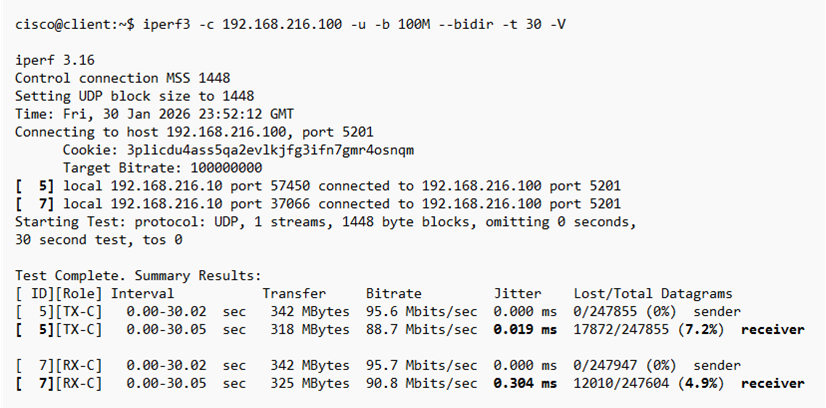
iperf3 -c 192.168.216.100 -u -b 100M –bidir -t 30 -V
iPerf3 Test Results
Saturation line rate speed results for bidirectional tests show somewhat worse packet loss. There is however significant network resiliency with device throughput capacity and QoS configuration.
Overload Test (120 Mbps)
iperf3 -c 192.168.216.100 -u -b 120M –bidir -t 30 -V
iPerf3 Test Results
Overload test results as with similar tests from upload and download tests confirm the network adapts quite well to stress testing with similar packet loss and jitter.
Stop iPerf3 server (Ctrl + C)
clear command
Lab 4: Disk Read/Write Throughput
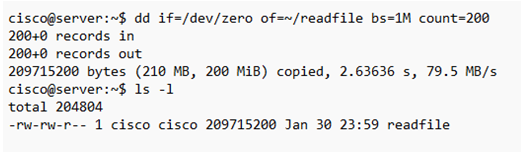
This test will create a 200 MB file on Ubuntu server using dd and read the test file from server disk to client with reverse mode. Server disk latency is a common bottleneck that can add significant latency to applications. It is important to identify whether network latency or server processing delay is a performance bottleneck.
Disk Read Throughput
Create 200 MB test file on Ubuntu server with the following command and start iPerf3 server.
dd if=/dev/zero of=~/readfile bs=1M count=200
iperf3 -s
Copy and paste this command on Ubuntu client to start reverse mode test that will copy readfile from server.
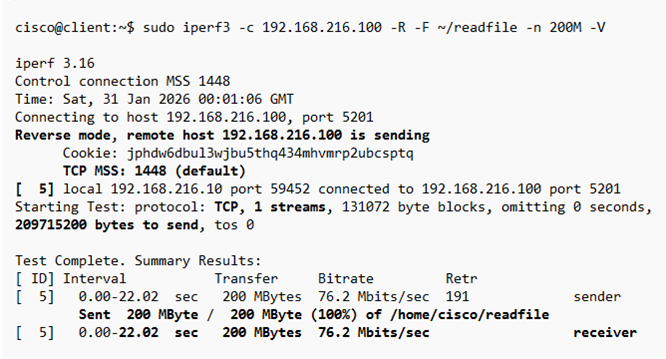
sudo iperf3 -c 192.168.216.100 -R -F ~/readfile -n 200M -V
iPerf3 Test Results
The most important result for this read test is test duration or amount of time to transfer 200 MB file from server to client. In this example the file download took 22 seconds to complete with a bit rate of 76.2 Mbps. TCP-based tests use all bandwidth available and are only constrained by network conditions.
Memory-to-Memory Test
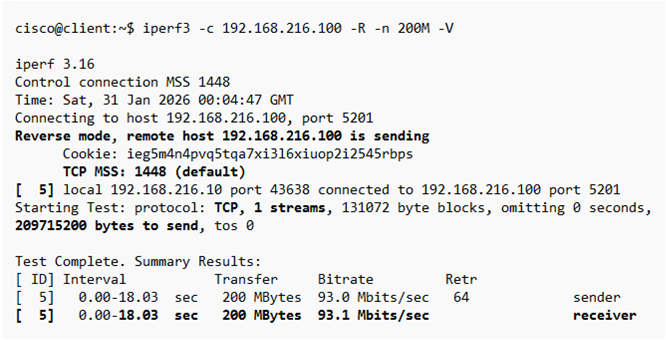
Run this default memory-to-memory test to compare throughput (bitrate) and amount of time required for the same 200 MB data transfer. The difference in download time is the server bottleneck.
iperf3 -c 192.168.216.100 -R -n 200M -V
iPerf3 Test Results
The results of this test confirm that memory-to-memory is 5 seconds faster (18 seconds) than disk access test for sending the same 200 MB data transfer. The server disk read access bottleneck causes higher latency and slower response time. This issue worsens when the server is busy and reason to deploy low-latency hard disks on server.
Stop iPerf3 server (Ctrl + C)
clear command
Disk Write Throughput
This test will create a file called writetest on Ubuntu server from the arriving client traffic and write it to server disk. The server disk speed adds more latency causing lower throughput and data transfer.
Copy and paste this command to Ubuntu server that will create a file using inbound packets from Ubuntu client.
iperf3 -s -F writetest
Copy and paste this command to Ubuntu client that will start test and send packets to Ubuntu server. The data transfer sent to server will be compared with standard memory-to-memory test.
iperf3 -c 192.168.216.100 -t 20 -V
iPerf3 Test Results
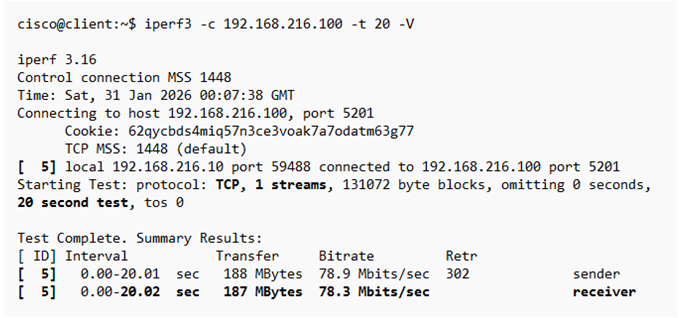
The disk write test sent packets from client to server for 20 seconds and transferred 187 MB to server. This data was used to write a file on server and test disk write latency effect.
Stop iPerf3 server (Ctrl + C)
Memory-to-Memory Test
Run this default memory-to-memory test to compare throughput (bitrate) and amount of data sent for the same 20 seconds duration. The difference in data transfer is the server write access latency bottleneck.
Copy and paste this command to Ubuntu server to start iPerf server.
iperf3 -s
Copy and paste this command to Ubuntu client to start test.
iperf3 -c 192.168.216.100 -t 20 -V
iPerf3 Test Results
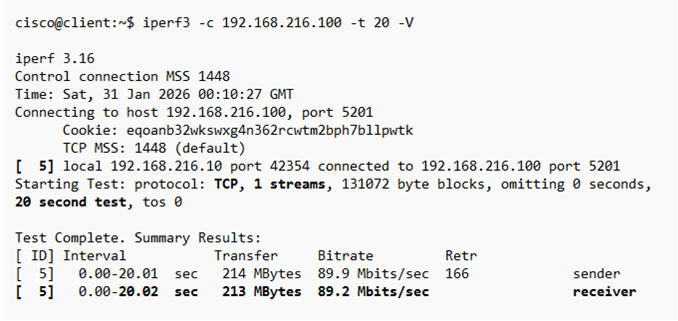
The results of this test confirm that memory-to-memory sent 213 MB of data for the same 20 seconds. That is an additional 26 MB of data sent to server and confirms server disk write access is a bottleneck. The disk bottleneck causes higher latency and slower response time. This issue worsens when the server is busy and reason to deploy low-latency hard disks on server.
Stop iPerf3 server (Ctrl + C)
clear command